Getting Started with AI SCADA
AI SCADA is an industrial SCADA/HMI platform for engineers who need to connect equipment, collect data, build operator views, record business data, and run a working project fast.
Start here first. This section takes you from first launch to a working project.
Start Here
Use this guide if you are:
- an OEM engineer building a machine-level monitoring project
- a system integrator delivering a line, cell, or workshop application
- a plant engineer validating AI SCADA before a rollout
In your first pass, you will:
- understand the main building blocks
- install and initialize the software
- open the engineering workspace and learn the main work areas
- create a small project of your own
- run it and verify the result
Before you begin:
- Use Editor if you need to create or modify a project.
- Use Vision if you only need to run an existing project.
- You can complete the quick start with a real device, internal tags, or an external channel with Static Simulation enabled.
- If you do not have hardware yet, start with internal tags. Use Static Simulation only if you want to keep an external-channel workflow.
What AI SCADA Is
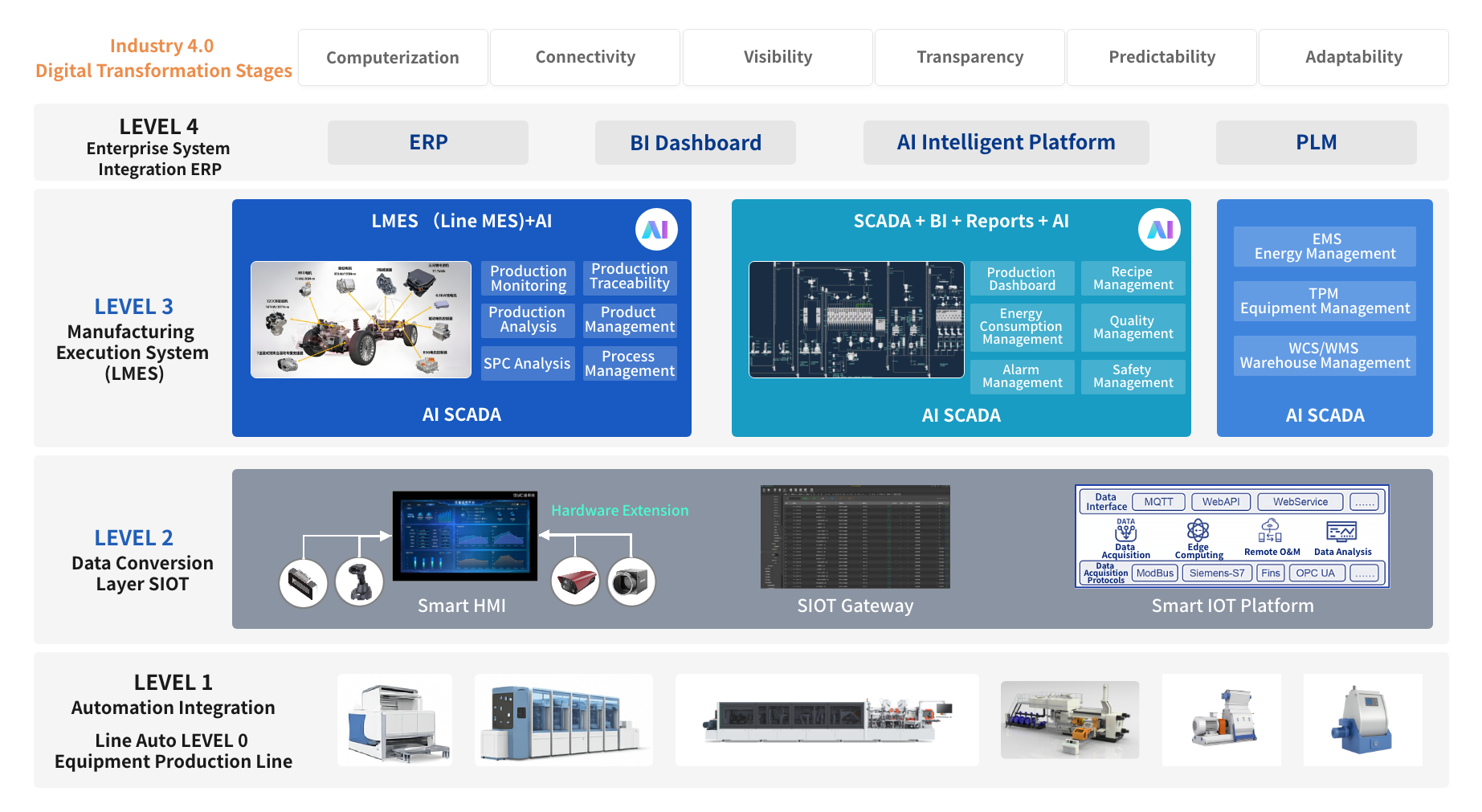
AI SCADA combines engineering, runtime, data, and integration into one industrial software stack:
- Editor for engineering: project setup, tags, views, alarms, scripts, and testing
- Vision for runtime: operator monitoring, data viewing, and control actions
- Host and SIOT for backend services and device communication
- MySQL and InfluxDB for configuration, alarms, business data, and time-series history
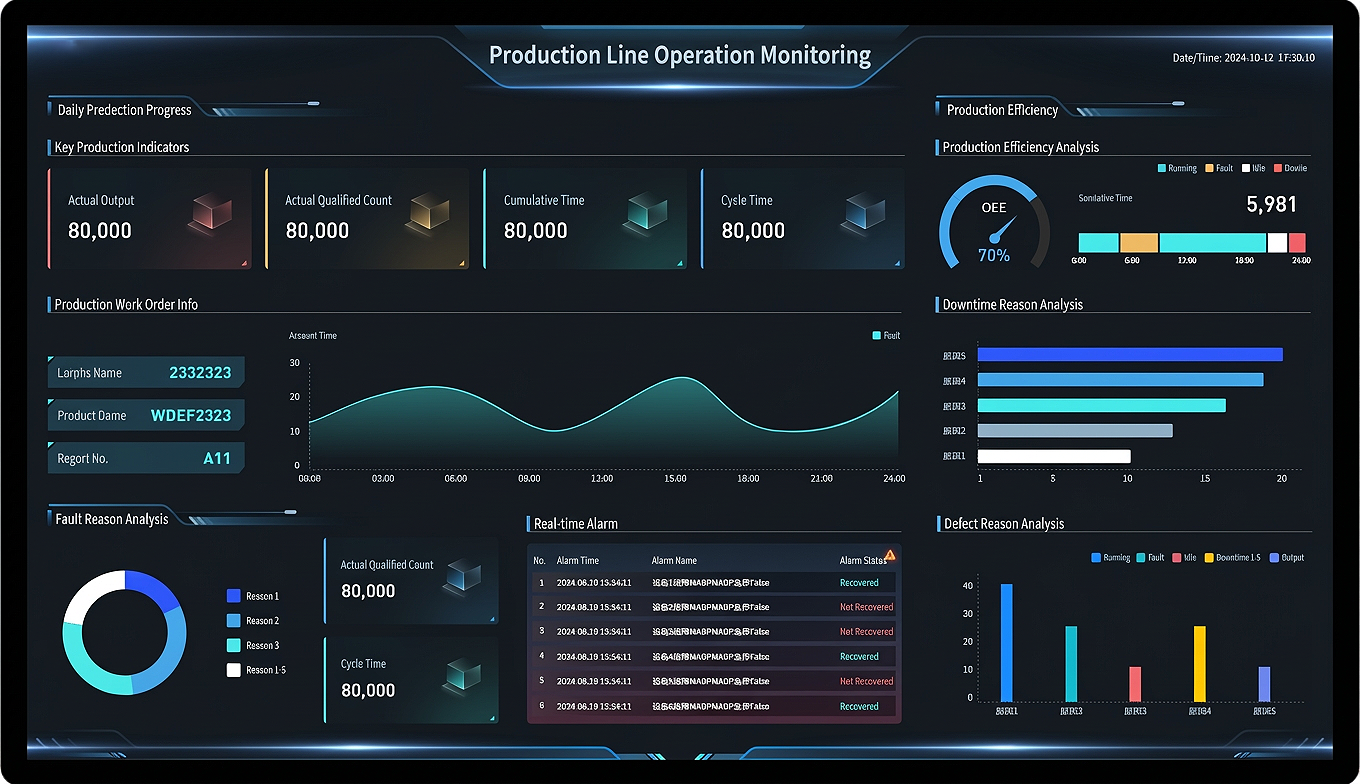
Typical first projects include:
- a machine overview with status, setpoints, and alarms
- a production-line monitoring screen with trends and counters
- a workshop dashboard with runtime, quality, and downtime data
- a production or traceability table feeding chart-based dashboards
- a customer-specific application connected to MES, ERP, or other systems
Where AI SCADA Is Different
| Area | Traditional Approach | AI SCADA Approach |
|---|---|---|
| First project setup | Engineers start from many disconnected tools | One workflow from project creation to runtime |
| View building | Manual component-by-component setup | Manual design plus AI-assisted page generation |
| Tag binding | Manual mapping for every component | AI smart binding plus manual override |
| Runtime model | Development and runtime boundaries are often unclear to new users | Clear split between Editor for engineering and Vision for runtime |
| History and data tables | Often separated into different tools or add-ons | Built-in support for time-series history and business data tables |
| Customer adaptation | Repeated handwork for each project | Reusable project workflow, naming standards, and AI-assisted starting point |
Learn the Main Building Blocks
Read these once, then build:
| Concept | Why it matters on day 1 | Learn more |
|---|---|---|
| Editor and Vision | You need to know where engineering ends and runtime begins | Core Concepts |
| Project | A project is the top-level container for tags, views, alarms, and scripts | Understanding Projects |
| Channel, Tag Group, and Tag | These define how device values enter the system and become usable in views | Understanding Tags |
| View | A view is the operator-facing screen you build and run | Understanding Views |
| Historian vs Data Management | Use Historian for time-series trends. Use Data Management to build tables with fields, tag links, and trigger rules. | Configuring Historian and Understanding Data Management |
| Alarm | Alarms turn abnormal conditions into visible, traceable events | Creating Alarms |
Recommended First Path
Follow the pages below in order:
- Core Concepts: Understand the product structure, main objects, and data flow.
- Download and Install: Install the correct client, choose a database mode, and complete first launch.
- First Launch and Workspace Tour: Confirm the first launch and learn where to create, configure, and run a project.
- Build Your Project: Create a small project from zero to runtime.
What You Should Be Able to Do After This Section
After completing Getting Started, a new user should be able to:
- explain what AI SCADA is and when to use it
- tell the difference between Editor, Vision, Host, and SIOT
- decide whether to start with internal tags, a real device, or an external channel with Static Simulation
- create a project, add tags, build a view, bind tags to components, and run it
- explain when to use Historian and when to create a Data Management table
- adapt the same workflow to a machine, line, utility system, or customer-specific scenario
After Your First Project
Choose the next topic based on your work:
- OEM / machine builder: Understanding Tags, Understanding Views, and the AI-assisted page workflow in Build Your Project
- System integrator: Understanding Data Management, Creating Alarms, and Working with Projects
- Plant or end user: start with First Launch and Workspace Tour, then move to Creating Alarms and the runtime sections in Working with Projects